Getting started
What Optimalify does, where blocks appear, and your first setup.
View as Markdown ↗Optimalify adds useful, on-brand blocks to your Shopify customer account pages — the pages your customers see after they log in (Orders, Order status, and Profile). No theme code, no developers: you configure everything in the app and place the blocks in Shopify’s editor.
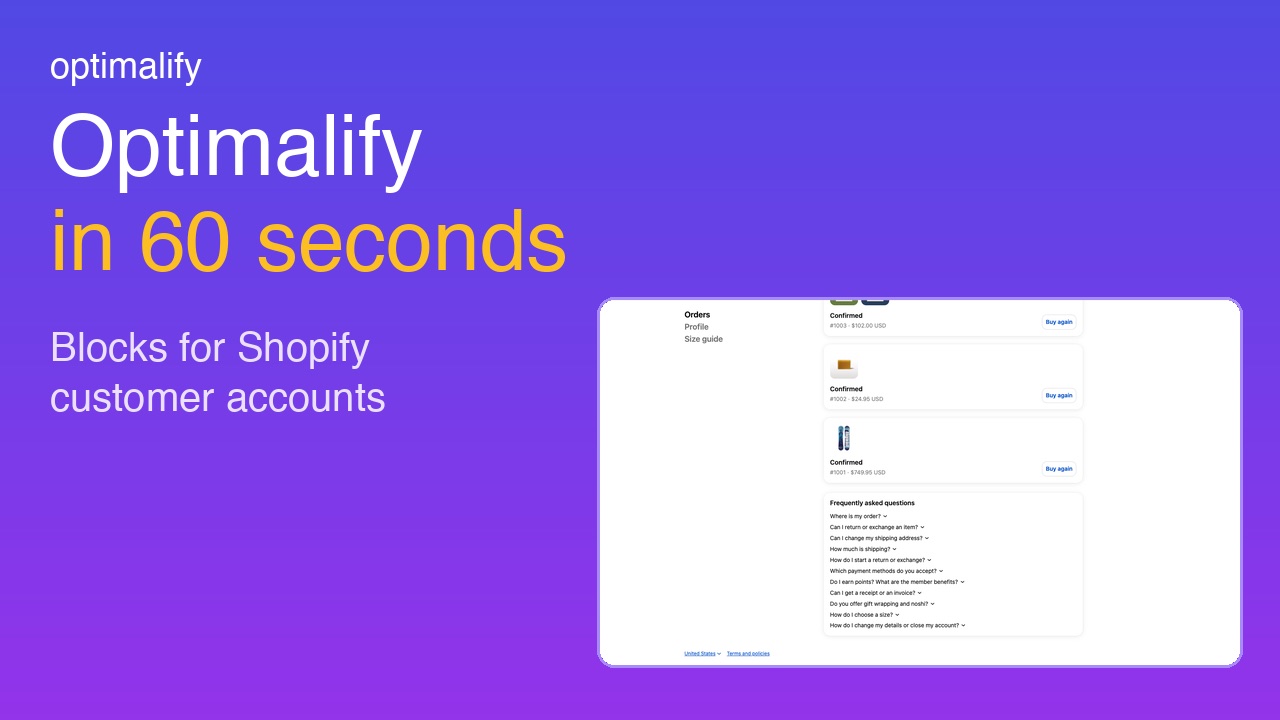
What you can add
- Announcement banner — announcements (sales, shipping notices, policy updates) on the Orders and Order status pages.
- Support contact — your contact channels (email, phone, WhatsApp, help center, “report a problem”) in the footer of every account page.
- Trust badges — secure-checkout, money-back, fast-shipping and custom badges on the Order status page.
- Payment icons — the payment methods you accept, shown as a tidy row of icons.
- Profile fields — let logged-in customers save their birthday, preferred size, and communication preferences (zero-party data you can use for marketing).
- Invoice download — a Download invoice PDF action on customers’ orders.
- Social links, FAQ, Store policies and Content section — links to your profiles, expandable Q&A and policy lists, and an image-and-text promo card.
- Buy again — a grid of the products a customer buys most, plus a Buy this again button on each order line.
- Member wallet — a loyalty card with the customer’s points, member rank and a membership QR code.
- Custom pages — your own pages inside the account, opened from the account menu.
Short on time? Starter packs on the Dashboard add a goal’s worth of blocks in one click.
How it works (2 steps)
- Configure the block in Optimalify. Open your Shopify admin → Apps → Optimalify. The Blocks page lists everything you can add. Open a block, fill in the content, set it to Active, and Save.
- Place the block on your pages. Open the customer account editor and add the Optimalify block where you want it. See Add blocks to your pages.
That’s the whole model: configure in the app → place in the editor. Some blocks (Support contact, Trust badges) sit in a fixed spot and only need step 1 plus turning the block on in the editor; Invoice download needs no editor step at all.
The Optimalify dashboard
Open Apps → Optimalify:
- Home shows a quick check of which blocks are live on your pages.
- Blocks is the catalogue of all 13 blocks. Open any one to configure it.
Before your customers can see anything
- Make sure the block is set to Active (not Draft) in Optimalify.
- Make sure you’ve added the block in the customer account editor and hit Save there.
- Customer account pages only appear to logged-in customers, so test while signed in to a customer account on your store.
Next: Add blocks to your pages →
Coming from legacy customer accounts? See what you lose and how to get it back.