Member wallet
A loyalty card with the customer's points, member rank and a membership QR code.
View as Markdown ↗Show members where they stand. Member wallet is a card with the customer’s points balance, their member rank, and an optional QR code that staff can scan in a physical shop.
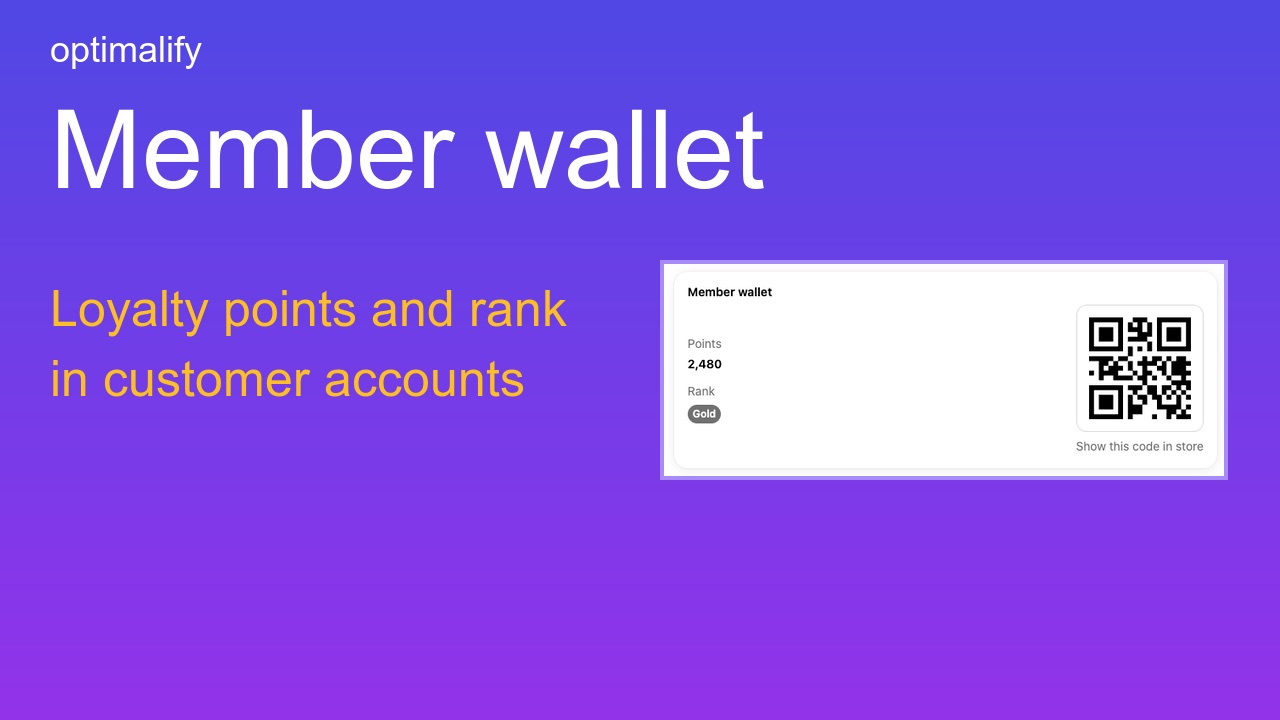
Where it appears
The Profile and Orders pages. Add the Optimalify Member wallet block wherever you want it in the editor.
Where the values come from
Optimalify doesn’t calculate points. It reads them from customer metafields that you, your loyalty app or a Shopify Flow write. For each value you want to show:
- In Shopify admin, go to Settings → Custom data → Customers and create (or open) the
metafield definition — for example
custom.loyalty_points(number or text) andcustom.member_rank(text). - Set Customer account access to Read. Without it, customers can’t see the value.
Metafields owned by another app (the $app namespace) can’t be read. Store credit isn’t shown.
Use a loyalty app
In the Loyalty app section, pick where the points come from. Picking an app only pre-fills the fields below, and you can still change them.
| Source | What it fills in |
|---|---|
| LoyaltyLion | Points from loyaltylion.points_total and rank from loyaltylion.loyalty_tier. The tier field only exists if your LoyaltyLion program has tiers (Classic plan or above). |
| Rivo (legacy JSON metafield) | Points from the points_balance key and rank from the vip_tier key of Rivo’s legacy JSON customer metafield (custom.rivo). |
| Smile.io (VIP tier only) | Rank from smile.vip_tier_name. Points are left blank. |
| Custom metafield | Nothing is filled in. Pick any customer metafield yourself. |
For any of them:
- Turn on the app’s own metafield sync, so the values are written to your customers: LoyaltyLion’s Shopify metafield sync, Rivo’s legacy JSON metafield sync, or VIP metafield sync in Smile.
- In Settings → Custom data → Customers, check the field’s name (change it in Optimalify if yours differs). You may need to create a definition for it. Set Customer account access to Read. Without it, customers see nothing.
Rivo: Rivo’s newer sync stores its values in a Rivo-reserved namespace that other apps can’t read, so keep Rivo’s legacy JSON metafield sync turned on.
Smile.io: Smile syncs only the VIP tier name to a metafield. It doesn’t sync the points balance, so points stay blank unless you pick another field.
JSON metafields
Some apps store several values in one JSON metafield, for example
{"points_balance": 1200, "vip_tier": "Gold"}. Pick that metafield and, under Advanced, enter
the JSON key to show (points_balance, or a path such as status.name). Leave it blank to show
the whole value, as before. A missing key hides that line.
Set it up
- Apps → Optimalify → Blocks → Member wallet.
- Fill in the card (below), set Status = Active, and Save. The page warns you if a metafield is missing or isn’t readable by customers.
- Add the Optimalify Member wallet block in the customer account editor — see Add blocks to your pages.
Settings
| Field | Notes |
|---|---|
| Card title | Leave blank to use the built-in title in each customer’s language. |
| Loyalty app | Pre-fills the points and rank fields for LoyaltyLion, Rivo or Smile.io. Custom metafield leaves them as they are. |
| Points metafield | Customer metafield as namespace.key, e.g. custom.loyalty_points. Blank hides points. |
| Rank metafield | Customer metafield as namespace.key, e.g. custom.member_rank. Blank hides the rank. |
| JSON key | Optional, under Advanced of each field. The key to read when the metafield holds JSON, e.g. points_balance. |
| Points label / Rank label | Optional. Blank uses the built-in label. |
| Show a membership QR code | The QR contains the customer ID, or a customer metafield such as a member number. |
| Text before the value | Optional prefix, e.g. MEMBER-, for POS systems that expect one. |
| Line under the QR code | Optional caption. |
Tips
- A customer who has no value for a metafield simply doesn’t see that line. If none of the values exist for them, the card is hidden.
- In the editor you see a short hint instead of real numbers, because no customer is signed in. Check the result by signing in to a test customer account on your storefront.
Plans
- The Free plan runs one active block at a time; Pro unlocks all of them.
Not showing? See FAQ & troubleshooting.