Announcement banner
Announcements on the Orders and Order status pages.
View as Markdown ↗Show announcements on your customers’ Orders and Order status pages — sales, shipping notices, policy updates, or a welcome message. Banner copy is shown exactly as you write it.
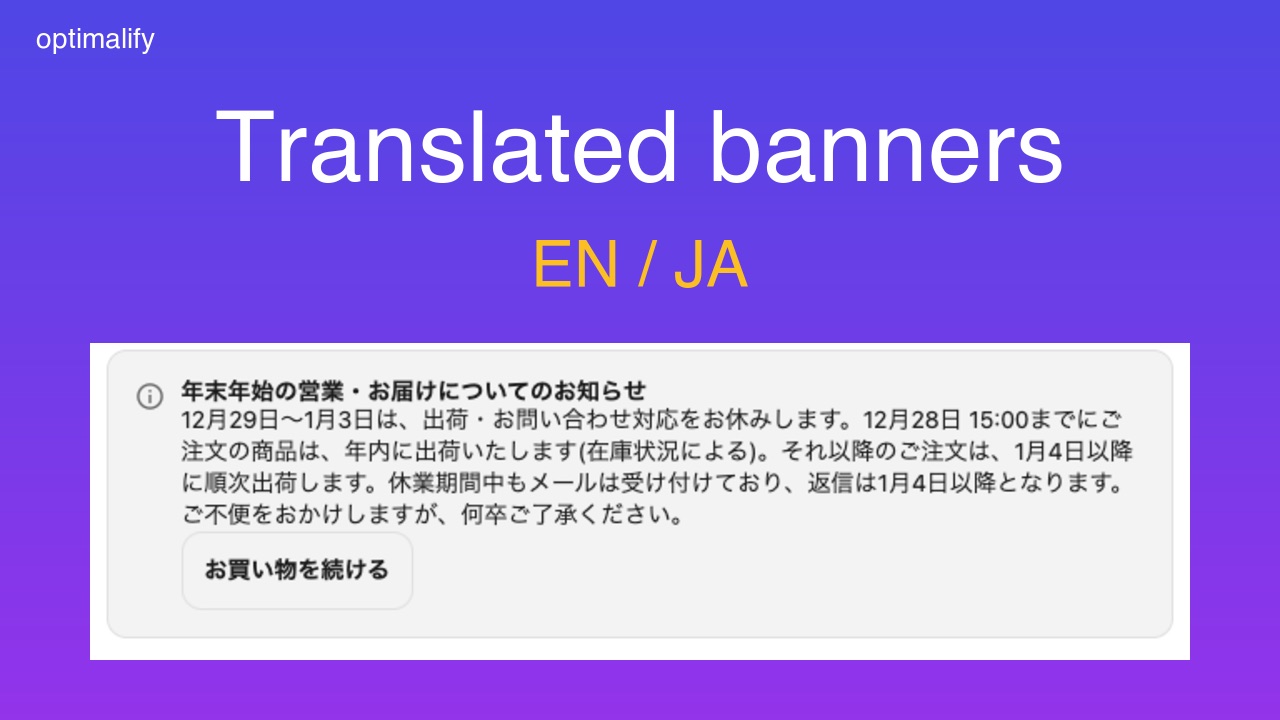
Where it appears
Orders (order index) and Order status pages. You choose which page(s) to place it on in the editor — see Add blocks to your pages.
Create a banner
- Apps → Optimalify → Blocks → Announcement banner.
- Click Add banner (you can create several).
- Fill in the fields (below), set Status = Active, and click Create / Save.
- Add the Optimalify Announcement banner block in the customer account editor. If you have more than one banner, choose each one’s Where to show placements.
Fields
| Field | Notes |
|---|---|
| Internal name | Only you see this — a label to find the banner later (max 60 chars). |
| Status | Active shows it to customers; Draft keeps it hidden. |
| Heading | The bold title (max 80). |
| Message | The body text (max 300). |
| Tone | Colour/emphasis: auto, info, success, warning, critical. |
| Let customers dismiss the banner | If on, customers can close it. |
| Button (optional) | Add a call-to-action: Button label (max 40) + Button link URL. |
Tips
- Tone sets the visual style — use
warning/criticalsparingly for genuinely important notices,successfor good news,info(orauto) for everyday messages. - Keep the heading short; the message can carry the detail.
- The live preview on the right updates as you type.
- Translate the banner text under Translations in the app or in Translate & Adapt — see Translate your blocks.
Show different banners on different pages
Create multiple banners, give each one its own Where to show placements, then place the block on each page. With the Entry handle left blank, each page shows the first active banner whose placements include it. See Banner placements & targeting.
Not showing up?
Check that the banner is Active, the block is added and saved in the editor, and you’re viewing while logged in. Full list in FAQ & troubleshooting.